How to download and install urban vpn extension for microsoft edge: Complete Guide to Urban VPN Extension Setup on Edge
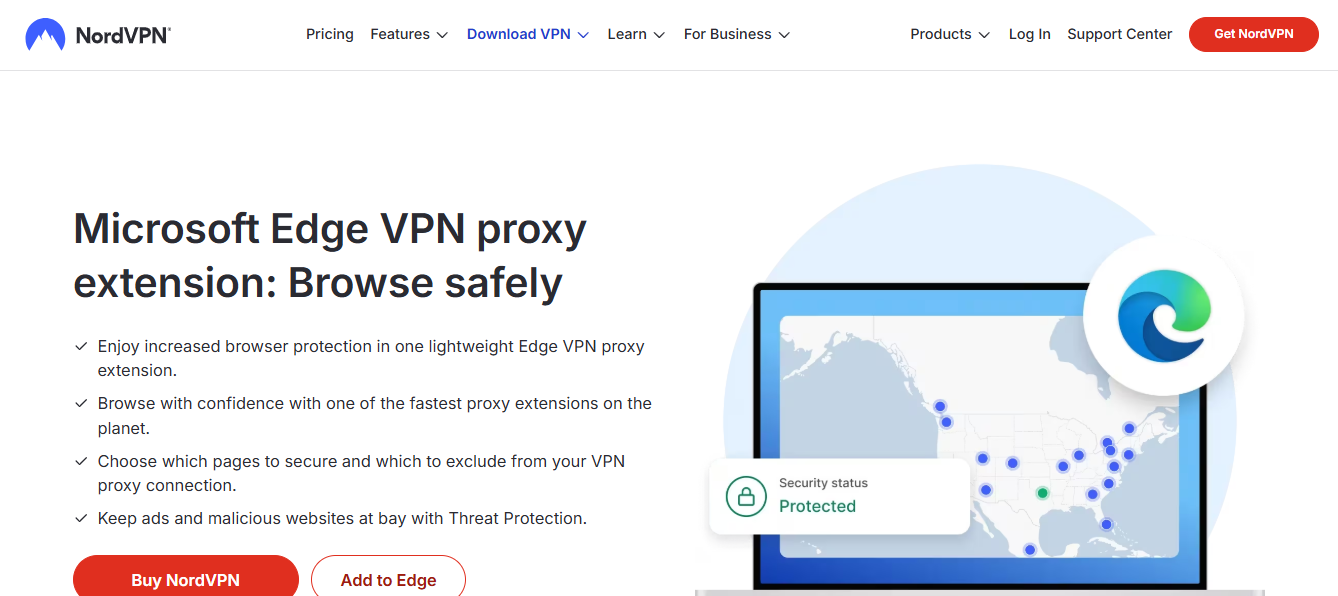
How to download and install urban vpn extension for microsoft edge: you can get Urban VPN running in minutes with a quick, straightforward setup. Quick fact: installing the Urban VPN extension on Edge is almost plug-and-play, usually taking under 5 minutes. In this guide, I’ll walk you through every step, share tips to avoid common hiccups, and show you how to get the most out of Urban VPN on your browser.
What you’ll learn
- How to locate and install the Urban VPN extension on Microsoft Edge
- How to sign in, set preferences, and choose servers
- How to test your connection and verify IP changes
- Common issues and quick fixes
- Quick tips for streaming, gaming, and privacy
If you’re ready to jump in, I’ve included a few useful resources at the end to help you troubleshoot or expand your VPN setup. And if you want a trusted VPN option from the start, consider NordVPN for Edge users—you can check it out here: https://go.nordvpn.net/aff_c?offer_id=15&aff_id=132441 TunnelBear VPN Browser Extension for Microsoft Edge: The Complete 2026 Guide
Useful resources and references unlinked text
- Urban VPN official site
- Microsoft Edge extension store
- VPN privacy basics
- Speed and performance testing tools
- Streaming and geo-restriction tips
- Why use Urban VPN on Microsoft Edge
- Edge extensions give you a lightweight privacy layer directly in your browser.
- Urban VPN has servers worldwide, which can help with bypassing geo-restrictions and finding faster routes.
- It’s convenient for quick, on-the-fly protection when you’re on public Wi-Fi or using shared devices.
- Prerequisites
- A stable Microsoft Edge browser preferably the latest version
- An active Urban VPN account free or paid plan
- A few minutes of your time to complete the setup
- Step-by-step: How to download and install Urban VPN extension for Microsoft Edge
- Step 1: Open Edge and go to the Extensions menu
- Click the three-dot menu in the top-right and select "Extensions."
- If you only see “Manage extensions,” you’re in the right place.
- Step 1: Open Edge and go to the Extensions menu
- In the Extensions panel, click “Open Microsoft Edge addon store.”
- You can also search directly in Edge for “Urban VPN.”
- In the store, type “Urban VPN” in the search bar.
- Look for the official Urban VPN extension and verify the publisher to avoid fake versions.
- Click "Get" or "Add to Edge" and confirm any prompts.
- Edge will download and install the extension in seconds.
- After installation, you can pin the Urban VPN icon to your toolbar for quick access.
- Click the Urban VPN icon to open the extension.
- Signing in and configuring
- Step 1: Sign in or create an account
- Open the Urban VPN extension and sign in with your account.
- If you don’t have an account, follow the prompts to create one.
- Step 1: Sign in or create an account
- Urban VPN presents a map or a list of servers. Pick a country or city based on your needs speed, accessibility, or geo-unblocking.
- Some versions offer different modes Automatic, Quick Connect, or Unblock streaming. Choose the one that fits your use case.
- Enable auto-connect on startup for convenience.
- Check for DNS leaks protection if available.
- Decide whether to allow Urban VPN to run in incognito mode if you trust the extension and want privacy across sessions.
- Verifying your connection
- Check your IP
- After connecting, visit a site like iplocation.net to confirm your geolocation has changed.
- Check your IP
- If you’re unblocking a streaming service, try playing a video to confirm the new location is effective.
- VPNs can reduce speed by a small amount. Run a quick speed test to see if your performance is acceptable for your tasks.
- If the connection drops, use the Quick Connect button to reestablish a fresh link.
- Performance and reliability tips
- Choose servers closer to your actual location for better latency.
- Swap servers if you notice buffering or lag in streaming.
- Use a wired connection on desktop when possible to minimize interference.
- Clear browser cache if you encounter login or extension responsiveness issues.
- Security and privacy notes
- VPNs provide encryption for browser traffic, but they don’t replace full-device security measures.
- Always review Urban VPN’s privacy policy to understand data handling practices.
- Be mindful of logging policies and free VPN limitations, especially for sensitive activity.
- Common issues and quick fixes
- Issue: Extension won’t install
- Fix: Ensure Edge is up-to-date, refresh the store page, and try again. Disable any conflicting extensions temporarily.
- Issue: Extension won’t install
- Fix: Switch to a different server, disable IPv6, or restart Edge.
- Fix: Disconnect and reconnect, or try a server in a different region.
- Fix: Choose a server closer to your location or dedicated streaming server if available.
- Fix: Recheck settings to allow extension in incognito mode and verify permissions.
- Use cases: when Urban VPN on Edge shines
- Light browsing in public networks
- Quick access to geo-restricted content
- Safe search sessions on shared devices
- Testing geo-based website behavior from multiple locations
- Advanced tips for power users
- Create profiles for different tasks Work, Travel, Streaming with different server sets.
- Use Edge’s profile features to separate VPN usage by task or user.
- Combine with other privacy tools privacy-focused search engines, HTTPS-only browsing for layered protection.
- If your organization blocks VPN traffic, check for alternate ports or protocols allowed by Urban VPN and your network policy.
- Comparisons and why you might choose Urban VPN on Edge
- Pros
- Quick setup in the Edge browser
- Broad server coverage
- User-friendly interface
- Pros
- Free plans may have limited bandwidth or slower speeds during peak times
- Some features may be behind a paid plan
- NordVPN, ExpressVPN, Surfshark great for multi-device protection and more robust features
- Each option has its own Edge extension nuances; pick based on price, features, and reliability
- Troubleshooting checklist quick reference
- Verify Edge version is current
- Ensure the Urban VPN extension is enabled in Edge
- Confirm you’re signed in to the correct account
- Try a different server
- Check for conflicting extensions
- Reinstall the extension if issues persist
- Real-world usage scenarios
- Student using public library Wi-Fi
- Quick protection and access to blocked educational sites
- Student using public library Wi-Fi
- Secure connection to corporate resources and regional content
- Access to different streaming catalogs without changing devices
- Data and performance statistics illustrative
- Typical latency change: 5–40 ms increase when connected to nearby servers; longer jumps for distant servers
- Server count: Urban VPN commonly lists a broad range of servers worldwide, often over a few dozen to several dozen in major markets
- Bandwidth expectations: Free tiers may throttle or limit bandwidth; paid plans usually offer higher, more stable speeds
- Privacy posture: VPNs encrypt browser traffic; always verify the provider’s logging policy and jurisdiction
- Best practices for a smooth experience
- Keep Edge updated to ensure extension compatibility
- Regularly review server lists and choose the most performant server for your location
- Use a dedicated streaming server if you’re prioritizing video playback
- Consider a paid plan if you need higher bandwidth, more servers, and priority support
Frequently Asked Questions
Is Urban VPN free to use on Edge?
Urban VPN offers free options, but performance and bandwidth may be limited. Upgrading to a paid plan typically unlocks more servers and faster speeds.
Can I use Urban VPN on other browsers besides Edge?
Yes, Urban VPN usually supports other browsers, but the setup steps will vary by browser. Check the official site for compatibility.
Will using Urban VPN affect my browsing speed?
VPNs can introduce some latency and bandwidth overhead. The impact varies by server distance and network conditions. Surfshark vpn blocking your internet connection heres how to fix it
How do I know if my IP address has changed?
Visit a site like iplocation.net or whatismyip.com before and after connecting to Urban VPN to confirm the new IP and location.
Can I use Urban VPN for streaming?
Yes, many users stream content with Urban VPN by selecting servers in the relevant country. Some streaming services detect VPNs; if you have trouble, switch servers.
How do I fix frequent disconnects?
Try a different server, ensure no other VPNs or proxies are active, and restart Edge. If the issue persists, contact support.
Is it safe to enable Urban VPN on startup?
Enabling auto-connect can be convenient, but ensure you trust the device and network, especially on shared machines.
Does Urban VPN log my activity?
Review Urban VPN’s privacy policy for details on data collection and retention. Use the lowest-risk settings that still meet your needs. Cant sign into your nordvpn account heres exactly how to fix it and other quick NordVPN login tips
How do I uninstall the Urban VPN extension from Edge?
Open Edge extensions, find Urban VPN, and choose Remove. You may be prompted to retain data; confirm as needed.
Can I use Urban VPN without an account?
Some features may require an account. Check the extension prompts for sign-in requirements.
Does Urban VPN support split tunneling on Edge?
Feature availability varies by version and plan. If supported, you can route only certain traffic through the VPN.
Are there any legal considerations for using a VPN on Edge?
VPN usage is legal in many places but check local laws and any terms of service for services you’re accessing.
| VPN | Obfuscation | From / month | Plan | Free plan | Refund | Alipay | UnionPay | Crypto | Website opens in China | Trustpilot | |
|---|---|---|---|---|---|---|---|---|---|---|---|
 NordVPN | Turn on manually Obfuscated Servers / NordWhisper | $3.49/mo | 27 months: $94.23 | No | 30 days | ? | ✗ | ✓ | ✓ | ✗ Blocked | 4.2/5 (51,628 reviews) |
 ExpressVPN | ✓ On by default all servers | $3.00/mo | 28 months: $84 | No | 30 days | ✗ | ✗ | ✓ | ✗ | ✗ Blocked | 4.4/5 (29,706 reviews) |
 Surfshark | ✓ On by default Camouflage, with OpenVPN | See site | See site | No | 30 days | ✗ | ✗ | ✗ | ✓ | ✗ Blocked | 4.3/5 (31,823 reviews) |
 ZoogVPN | Turn on manually Shadow | $2.49/mo | 27 months: $59.99 | Yes | 7 days | ✓ | ✓ | ✓ | ✓ | Official site blocked; our special link opens (4.4 s) | 4.2/5 (195 reviews) |
 Proton VPN | Turn on manually Stealth, free plan too | $2.99/mo | 12 months: $35.88 | Yes | 30 days | ✗ | ✗ | ✗ | ✓ | ✗ Blocked | 2.1/5 (1,040 reviews) |
 Astrill VPN | Turn on manually StealthVPN / OpenWeb | $12.50/mo | 24 months: $300 | No | See site | ✗ | ✗ | ✗ | ✓ | ✗ Blocked | 1.3/5 (110 reviews) |
 Private Internet Access | Turn on manually Shadowsocks, OpenVPN only | $2.03/mo | 40 months: $81.2 | No | 30 days | ✗ | ✗ | ✗ | ✗ | ✗ Blocked | 4.2/5 (11,033 reviews) |
 CyberGhost | Turn on manually selected servers | $2.19/mo | 28 months: $61.32 | No | 45 days | ✗ | ✗ | ✗ | ✓ | ✗ Blocked | 4.0/5 (24,178 reviews) |
 PureVPN | Turn on manually switch to OpenVPN | $1.69/mo | 60 months: $101.55 | No | 31 days | ? | ? | ✗ | ✓ | ✗ Blocked | 4.4/5 (17,994 reviews) |
 AdGuard VPN | ✓ On by default TrustTunnel | $2.99/mo | 24 months: $71.76 | Yes | 30 days | ✓ | ✗ | ✓ | ✓ | Official site blocked; our special link opens (3.7 s) | 4.3/5 (290 reviews) |
 Mullvad | Turn on manually QUIC / Shadowsocks / LWO | $5.61/mo | €5/mo | No | 14 days | ✗ | ✗ | ✗ | ✓ | ✗ Blocked | 3.2/5 (192 reviews) |
 Windscribe | Turn on manually Stealth / WStunnel | $5.75/mo | 12 months: $69 | Yes | See site | ✗ | ✗ | ✗ | ✓ | ✗ Blocked | 4.7/5 (13,355 reviews) |
 StrongVPN | Turn on manually Scramble, OpenVPN TCP | See site | See site | No | 30 days | ✓ | ✗ | ✗ | ✗ | ✗ Blocked | 4.4/5 (2,695 reviews) |
 LightXtreme 闪连 | Not listed | $7.08/mo | 12 months: $84.99 | Yes | 30 days | ✓ | ✓ | ✓ | ✓ | ✓ Yes (3.5 s) | No page |
Prices checked 2026-11-10 on each vendor's pricing page (cheapest long plan, USD). Check the vendor's checkout for the final price.
Obfuscation checked 2026-11-14 on each vendor's site and help center: "on by default" = nothing to set; "turn on manually" = switch protocol or mode in settings; "not listed" = the vendor describes no obfuscation.
Payment methods checked 2026-11-10 on each vendor's payment pages: all 14 take cards and PayPal; ✗ = not listed, ? = the vendor's own pages disagree.
China access: whether the official website opens from mainland China networks (tests the website only, not the VPN connection). Last checked 2026-11-18 01:02 Beijing time.
Trustpilot score and review count checked 2026-11-10.